跳到主要內容

XPage 紀錄 – IBM XPage Lab 實作 (三)

繼前幾章練習,本次針對ibm lab第五章,學習如何透過設定及簡單資料鏈結,將notes 文件顯示到XPages,廢話不多說,直接看重點,其餘請依lab內容練習。
Lab上四章結果應為下圖:


1. 建立一個profile 表單 (傳統Notes表單)並與XPage profile表資料連結,以顯示資料;此即是Notes Form àXPage顯示方式↓


2. 開啟profile自訂控制項,設定XPage抓取Form的欄位資料

先選擇資料來源,在選擇表單名稱↑

3. 設定欄位計算方式↓

選擇完,在選擇Xpage所有內容à資料àdataàcomputeWithForm 為 onsave,此選項是下一章節要做儲存、編輯等動作按鈕之準備動作

4.在XPage中建立欄位,對應到Notes Form中
 ↑可以自行建立表格及欄位,也可以如上圖,在資料鏈結控制項中將要顯示之欄位拖拉到XPage中
拖拉後即會出現下圖,可以改變欄位之型態。↓


也可以在概要中拖拉以排序表格欄位順序,並修改表格顯示名稱↓

 ※由資料鏈結控制項中拖拉會直接建立表格,並直接顯示欄位名稱。↑

五、預覽
建立一個View,直接在Web預覽,若如下圖顯示,則表示正確無誤,以能把Form透過XPage顯示↓


貳、XPage上編輯、儲存文件

1. 在自訂控制項中加入四個按鈕,在分別訂定可見條件與事件↓
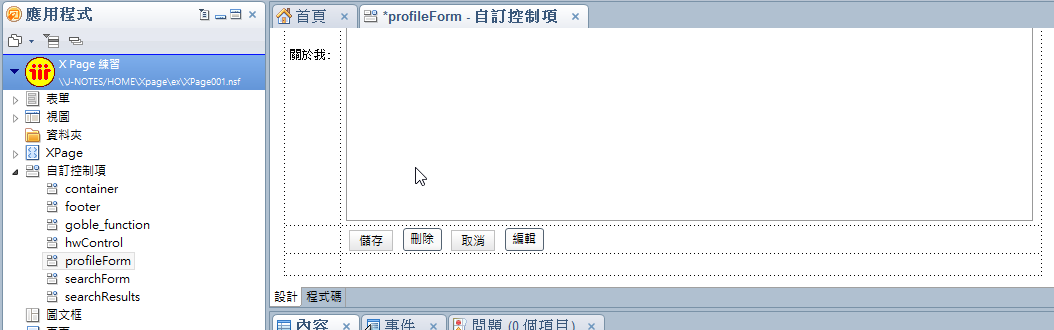
2.設定儲存的可見條件↓
↑公式:document1.isEditable() ,可以由廣域物件àdocument1 找到,document1及上一章節中針對XPage和Notes Form資料連結時所設定的物件名稱。


3. 設定『儲存』的OnClick事件↓


在[事件]中新增à[簡單動作]à "基本"à"開啟頁面" àhome ↑


4. 設定『刪除』的可見條件↓
 公式:!document1.isNewNote(),非新文件才可以看的到

5. 設定『刪除』的事件↓

6. 設定『取消』的事件

7. 設定『編輯』的可見條件↓
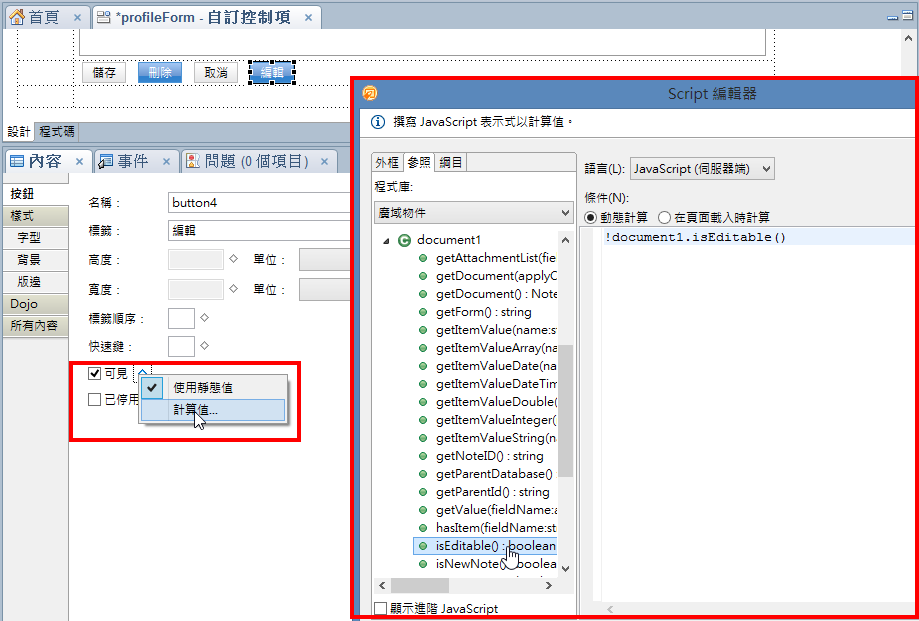
8. 設定『編輯』的事件

9. 預覽


留言

匿名表示…
Hi there! I could have sworn I've been to this blog before but after going through a few of the articles I realized it's new to me.
Regardless, I'm certainly delighted I stumbled upon it and I'll be book-marking it and checking back frequently!


Here is my blog post ... Lavatory Counter Tops
My web page > royalbluekennel.com
匿名表示…
What's Taking place i'm nеw to this, I stumbled uρon this I've discovered It positively helpful and it has aided me out loads. I am hoping to give a contribution & help other users like its helped me. Good job.

Have a look at my weblog augen lasern

這個網誌中的熱門文章

XPage 紀錄 – IBM XPage Lab 實作 (四)

本次重點在於,自動搜尋 (type-ahead) 功能,跟目前 Web 上輸入文字,自動帶出關鍵字方便使用者輸入。 1.開啟 profileForm 建立下拉 ( 組合框 ) 欄位的選項值↓ 點選該欄位,選下方『值』 à 先點『新增項目』出現未命名,在輸入選項值↑

安裝 Office 2003 Service Pack 3 後,特定檔案格式會被封鎖的資訊

安裝 Office 2003 Service Pack 3 後,特定檔案格式會被封鎖的資訊 檢視此文章適用的產品。 注意事項 重要 本文包含如何修改登錄的相關資訊。修改登錄之前,請務必將它備份起來,並了解在發生問題時如何還原登錄。如需有關如何備份、還原和修改登錄的詳細資訊,請按一下下面的文件編號,檢視「Microsoft 知識庫」中的文件: 256986 (http://support.microsoft.com/kb/256986/ ) 說明 Microsoft Windows 登錄 在此頁中 結論 簡介 其他相關資訊 Excel PowerPoint PowerPoint Word Corel Draw

Notes改 Internet Password

Internet Password Change application helps users in changing their Internet Password. This application is 'web browser only' application and is IE and Netscape browser complaint. The application gets the new password as input from the user and updates the Internet Password in his person document in the address book. Please note that this application is an enhancement over previous version available at:   http://www.notes.net/sandbox.nsf/ByDateNJ/6b3ac13c82ba68c885256b4f0074c89d?OpenDocument Use this version when "Use more secure Internet Passwords" option is enabled in the Domino Directory Profile. If the option is not enabled then using the previous version is advisable. Using the application: Step 1: Sign the database using an ID which can edit any person document in the names.nsf. Usually this will be the server administrator. Step 2: Open the "Change Password" form from anywhere on your Intranet. Sample Code -